
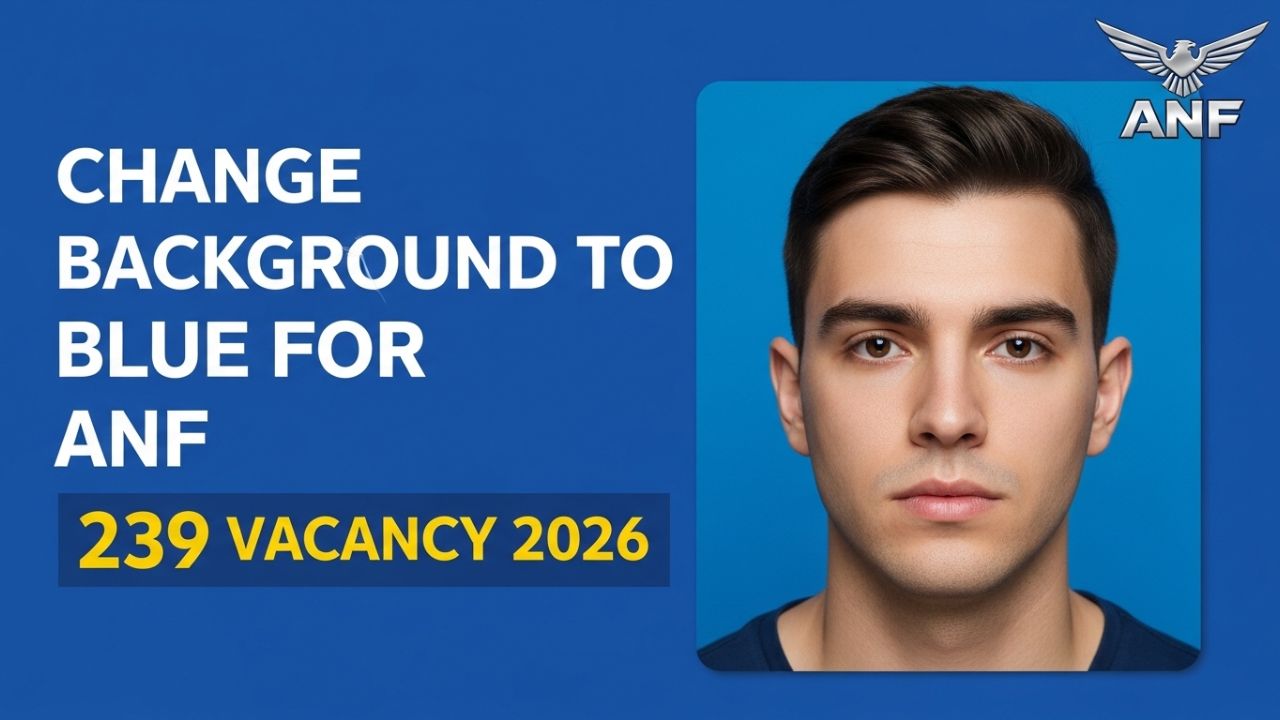
Applying for ANF 239 New Vacancy 2026 requires submitting a proper passport-size photo with a blue background. Many applicants face rejection or form errors because their photo background is not correct.
If you have already taken a photo with a white or mixed background, don’t worry. You can easily change it to blue background online within a few minutes.
This guide explains how to change your photo background to blue for ANF jobs, using a simple online tool.
Why Blue Background Is Required for ANF Jobs
The Anti Narcotics Force (ANF) requires a standard passport-style photograph when applying online. Most government job portals in Pakistan require:
- Plain blue background
- Clear face visibility
- Recent photograph
- No sunglasses or heavy filters
Using the correct background helps the system identify your image properly and avoids application rejection.
Common Photo Requirements for ANF Application
| Requirement | Details |
|---|---|
| Background Color | Blue |
| Photo Type | Passport Size |
| Image Format | JPG / JPEG / PNG |
| File Size | Usually under 200–500 KB |
| Face Visibility | Clear and centered |
If your photo does not meet these requirements, you should edit it before uploading.
Best Free Tool to Change Photo Background to Blue
One of the easiest tools is:
Remove.bg
You can directly open it here:
https://www.remove.bg/f/blue-background
This website automatically removes the background and allows you to add a blue background instantly.
Step-by-Step: How To Change Background to Blue for ANF Application
Follow these simple steps.
Step 1: Open the Background Editing Tool
First, visit the background editing page:
https://www.remove.bg/f/blue-background
This page allows you to upload your photo and automatically remove the background.
Step 2: Upload Your Photo
Click the Upload Image button and select your passport photo from your device.
Best results happen when the image:
- Has good lighting
- Shows your full face
- Is not blurry
Within a few seconds, the tool will automatically remove the background.
Step 3: Add a Blue Background
After the background is removed:
- Click Edit
- Select Background
- Choose the blue color option
You can adjust the shade if needed. For government applications, choose a light blue background.
Step 4: Adjust Photo Position
Make sure:
- Your face is centered
- Your shoulders are visible
- There is enough space above the head
Avoid cropping the face too closely.
Step 5: Download the Edited Photo
Once everything looks correct:
- Click Download
- Save the image to your computer or phone
- Upload it to the ANF job application form
Now your photo is ready for submission.
Alternative Ways to Change Background to Blue
If remove.bg does not work for you, there are other options.
1. Mobile Apps
You can use apps like:
- Background Eraser
- PhotoRoom
- PicsArt
Steps are similar:
- Upload photo
- Remove background
- Select blue background
- Save the image
2. Online Photo Editors
Other websites include:
- Canva
- PhotoRoom
- Fotor
These tools also allow you to replace background color easily.
Read More: Which Part of ANF Recruitment is Most Difficult – Physical, Written, or Interview?
Common Mistakes to Avoid
Many candidates make small mistakes that can cause application rejection.
Avoid these errors:
❌ Wrong Background Color
Do not use:
- White background
- Dark blue background
- Mixed colors
Always choose plain light blue.
❌ Low Quality Image
Blurry photos can be rejected.
Make sure:
- Face is clear
- Lighting is good
- Image resolution is high
Government applications require natural photos.
Tips for Taking a Perfect ANF Application Photo
Before editing your background, try to take a good photo first.
Best Photo Tips
- Stand in front of a plain wall
- Use natural daylight
- Keep neutral facial expression
- Wear simple clothes
- Keep your head straight
If possible, take the photo using a smartphone camera in portrait mode.
Why Background Editing Is Useful for ANF Applicants
Many applicants cannot visit a professional photo studio before applying.
Online tools make it easier because they:
- Save time
- Save money
- Work on mobile phones
- Produce quick results
Within 2–3 minutes, you can create a perfect blue background photo for ANF 239 vacancy 2026.
Quick Checklist Before Uploading Photo
Before submitting your ANF job application, check these points:
✔ Blue background
✔ Clear face visible
✔ Passport-size format
✔ File size within limit
✔ No filters or editing effects
If all these are correct, your photo is ready to upload.
FAQs
How do I change my photo background to blue online?
You can use free tools like remove.bg. Upload your image, remove the background automatically, select blue color, and download the edited photo.
What background color is required for ANF jobs?
Most ANF applications require a plain light blue background for passport-size photographs.
Can I change my photo background using a mobile phone?
Yes. Apps like PhotoRoom, PicsArt, and Background Eraser allow you to change the background directly from your smartphone.
What is the ideal photo size for ANF application?
Usually, a passport-size image in JPG format under 200–500 KB works best. Always check the exact requirement on the application portal.
Is it safe to use online background remover tools?
Yes, popular tools like remove.bg are widely used and safe for editing images for job applications.
Final Words
Changing your photo background to blue for ANF 239 New Vacancy 2026 is very simple if you follow the right method.
Using tools like remove.bg, you can convert any photo into a professional passport-style image in just a few minutes.
Before submitting your ANF application, always double-check your photo to ensure:
- Correct background color
- Good image quality
- Proper face visibility
A correct photo increases the chances that your ANF job application will be accepted without any issues.